An Institution: Units and Staff
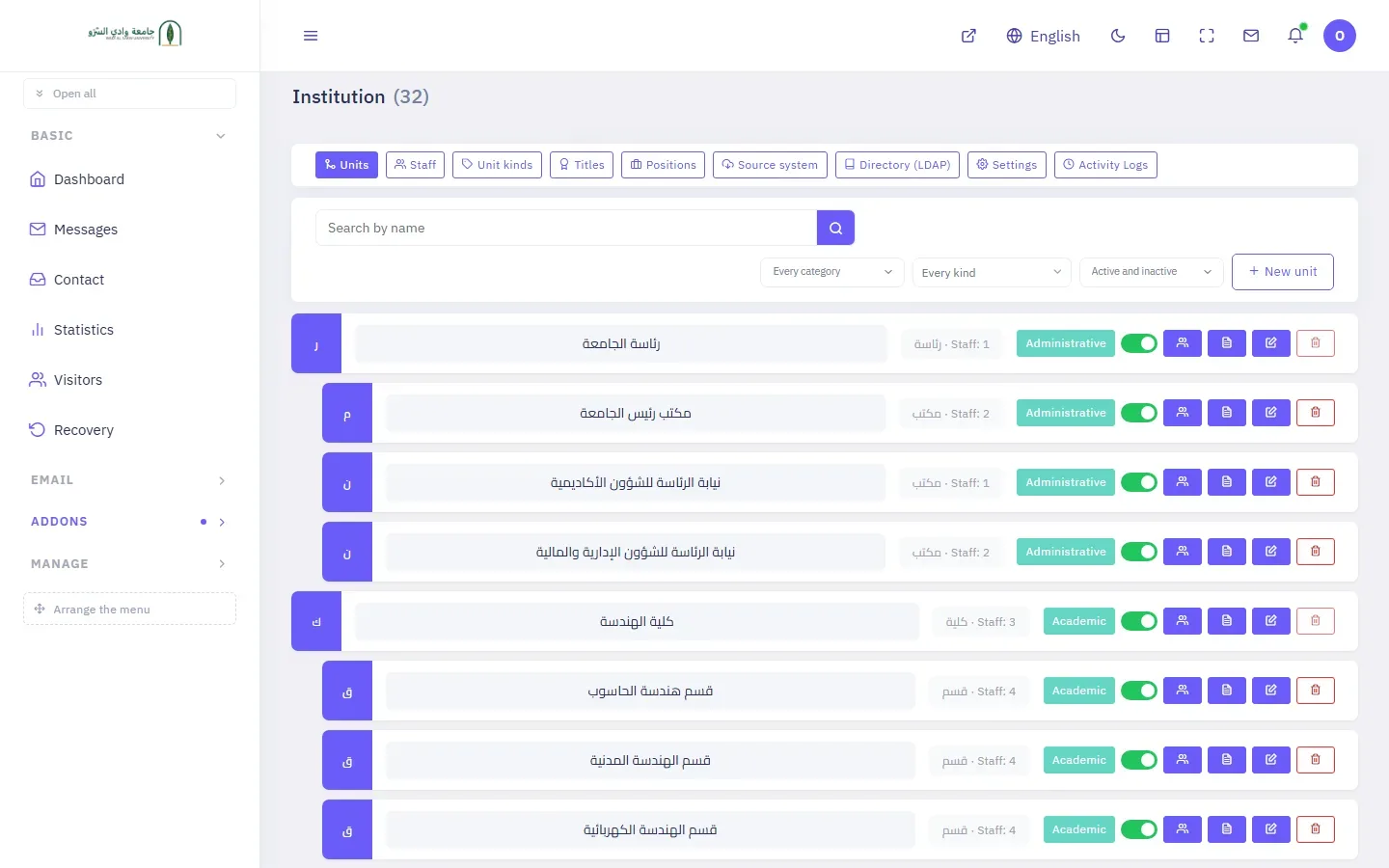
A university, a ministry or a hospital: its units as a tree, its people with their titles and extensions, and a page for every unit — typed in by hand or read from the institution's own systems.
The Institution addon holds what a large organisation is made of — its faculties, departments and offices, and the people who work in each — and draws it on the site as a tree of units, a page for every unit, a staff directory and a phonebook. Everything in it can be typed in by hand, or read from the institution's own system and its LDAP directory. The demo university at institution.unisoftco.com shows all of it working.
Where it lives
Addons → Institution opens one screen with these tabs: Units, Staff, Unit kinds, Titles, Positions, Source system, Directory (LDAP), Settings and Activity Logs. The three before the log appear only to someone allowed to set the addon up — see the last part of this chapter. Activity Logs records every unit, person and link added, changed or removed, and every synchronisation with its numbers.
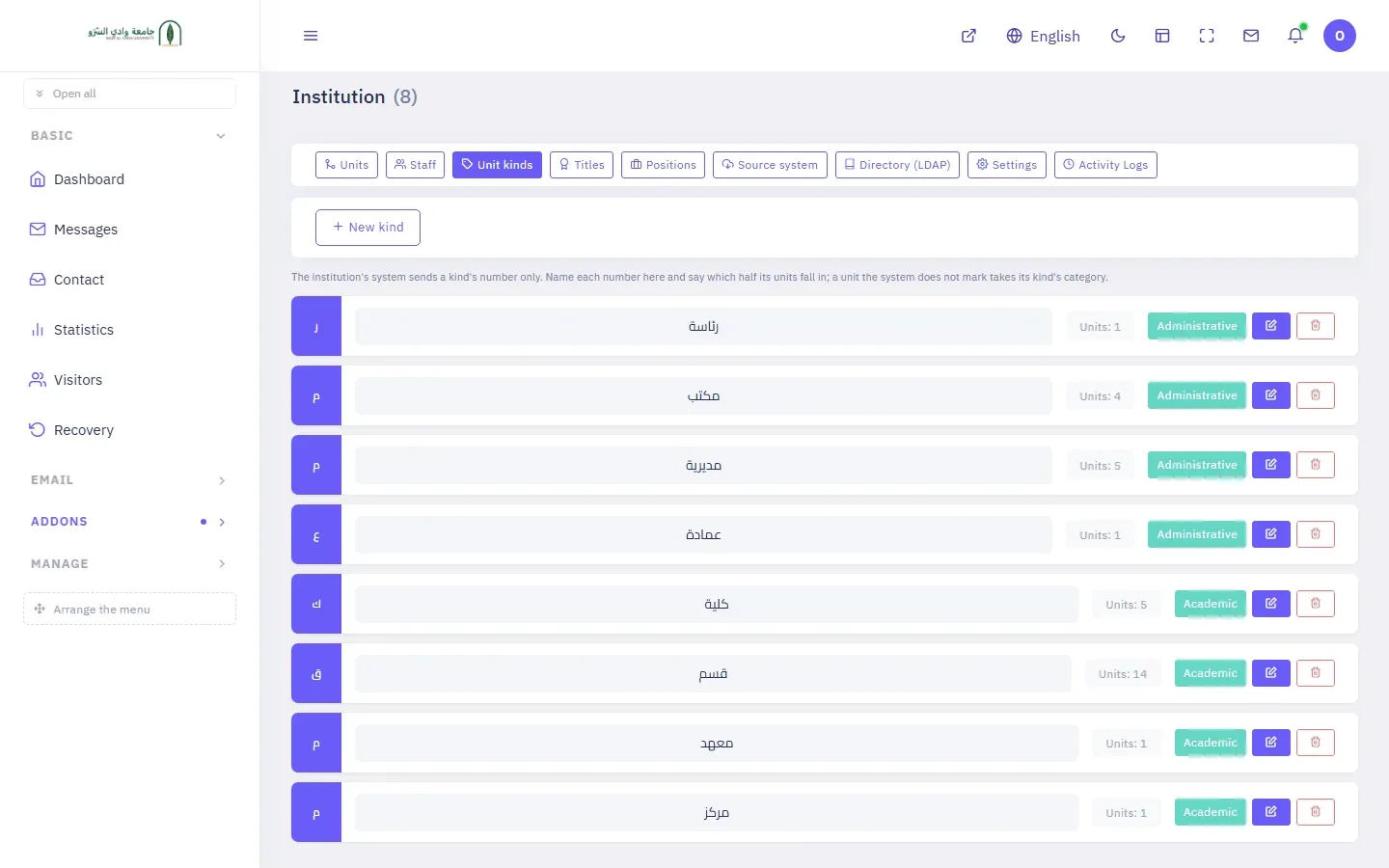
Unit kinds and the two halves
Every unit has a Kind — presidency, faculty, department, office — and every unit falls in one of two halves, Academic or Administrative. The halves are what the site's lists filter by: the academic staff on one page, the administrative staff on another.
On Unit kinds each kind says which half its units fall in (Category of its units), so a unit usually takes its category from its kind; a unit may still be given another. Number in the institution's system is the number the institution's own system sends for that kind; leave it empty for a kind you only use by hand. When a synchronisation brings a number nobody has named, it appears here as an unnamed kind marked Needs a name.
Units, as a tree
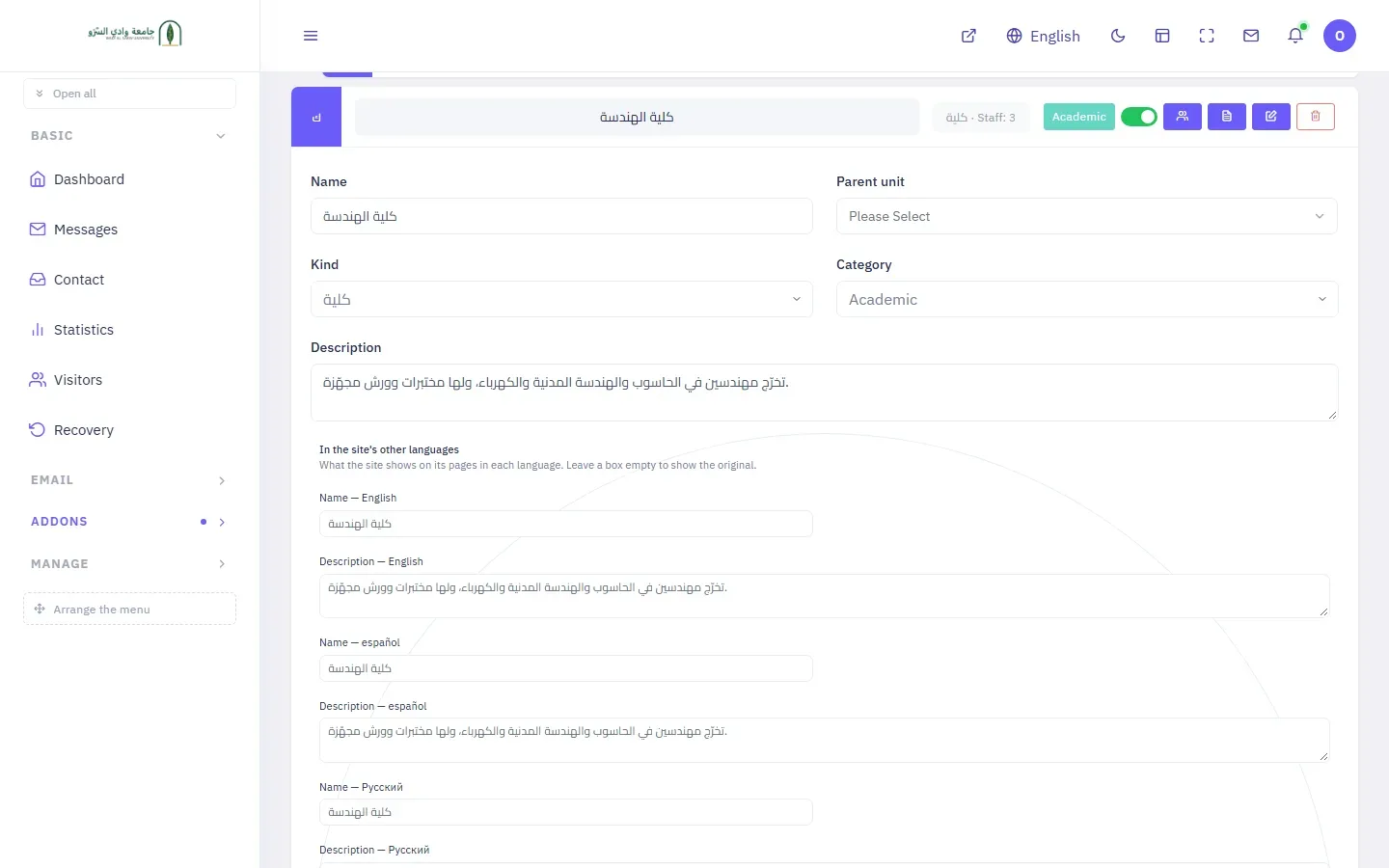
New unit asks for a Name, a Parent unit (or At the top), a Kind, a Category — left on The kind's category it follows the kind — and a Description. The list draws the tree with the units under each one indented below it, and can be searched by name and narrowed by category, kind and state.
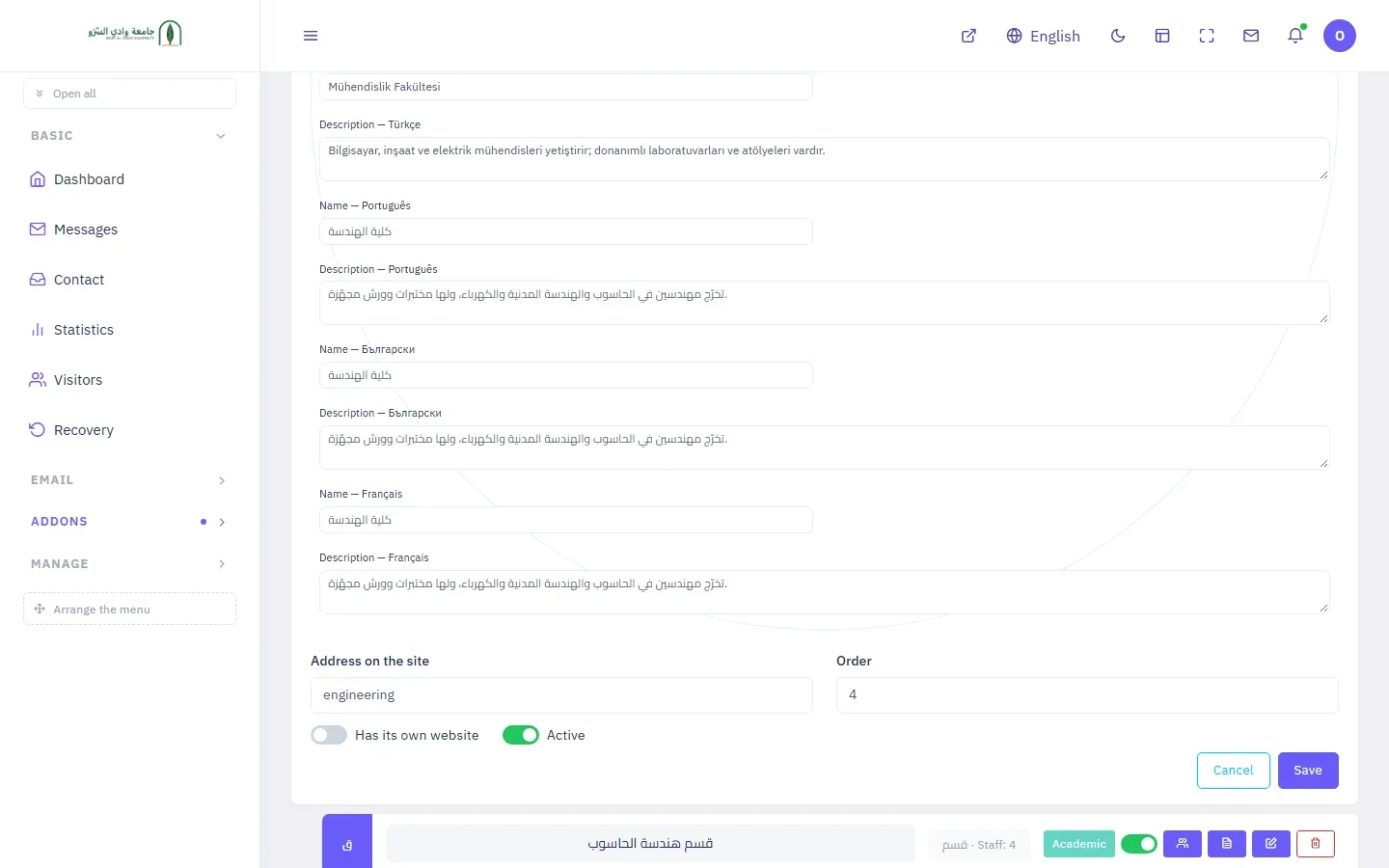
Further down the same form, Address on the site is the last part of the unit's own page address — /tr/birim/engineering on the demo — and Order places it among its sisters. Has its own website with a Website address puts a link to the unit's own site on its page. The switch takes a unit off the site without deleting it.
A unit with units under it cannot be removed until they are moved or removed. Removing a unit takes its staff ties and its document links with it; the people and the documents themselves stay.
Staff
Staff lists the people, searched by name, e-mail or registry number and narrowed by unit, title, category and state. New person asks for a Title, First name and Last name, a Position, an E-mail and a Category.
The Registry number is shown in the panel only, never on the site. The YÖK Akademik page, or any academic profile address, makes the person's name on the site a link to it. Accounts elsewhere adds their pages on other networks.
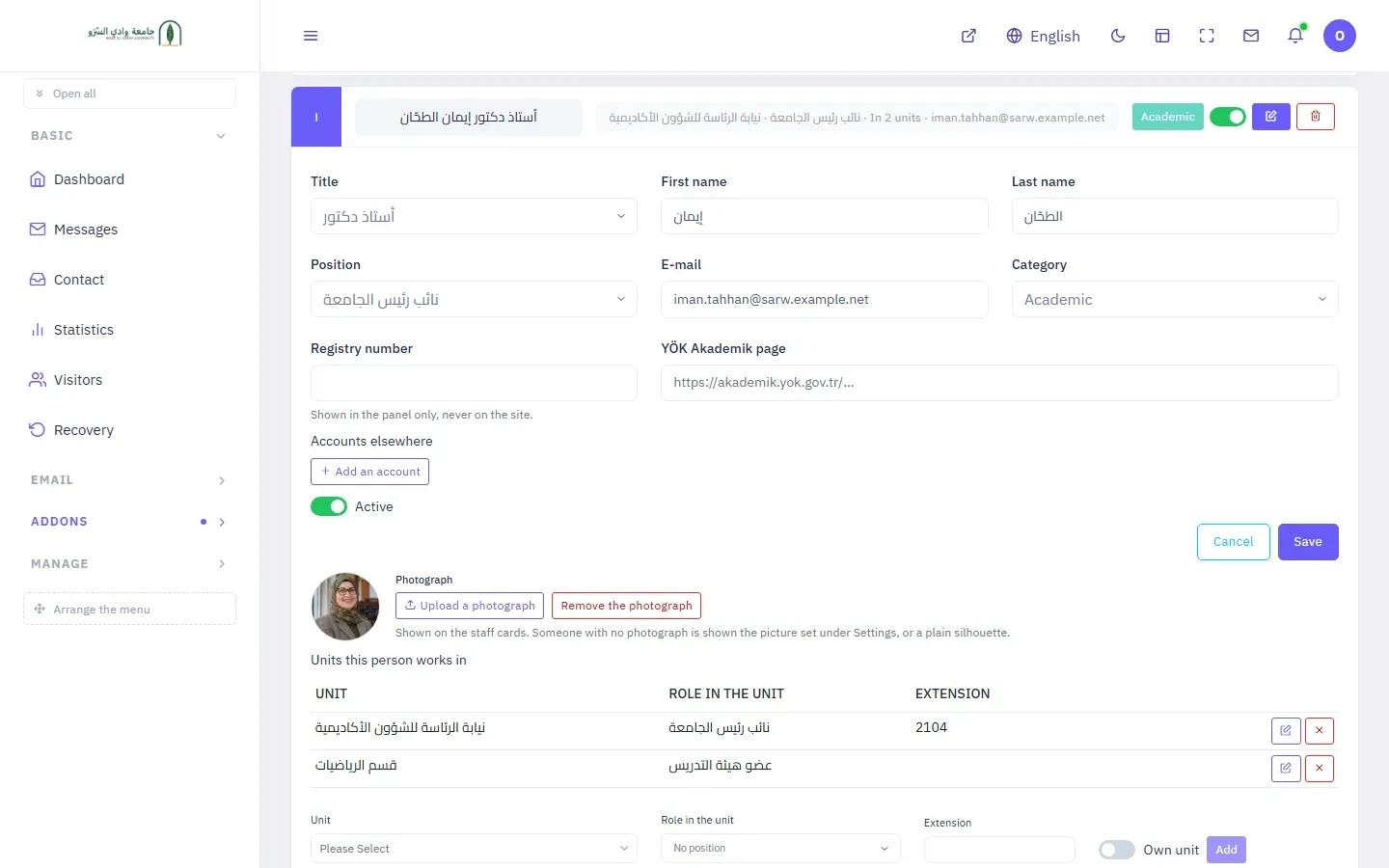
Someone who leaves is better switched off than removed: switched off, they disappear from the site and keep their history; removed, their posts go with them.
A person in a unit
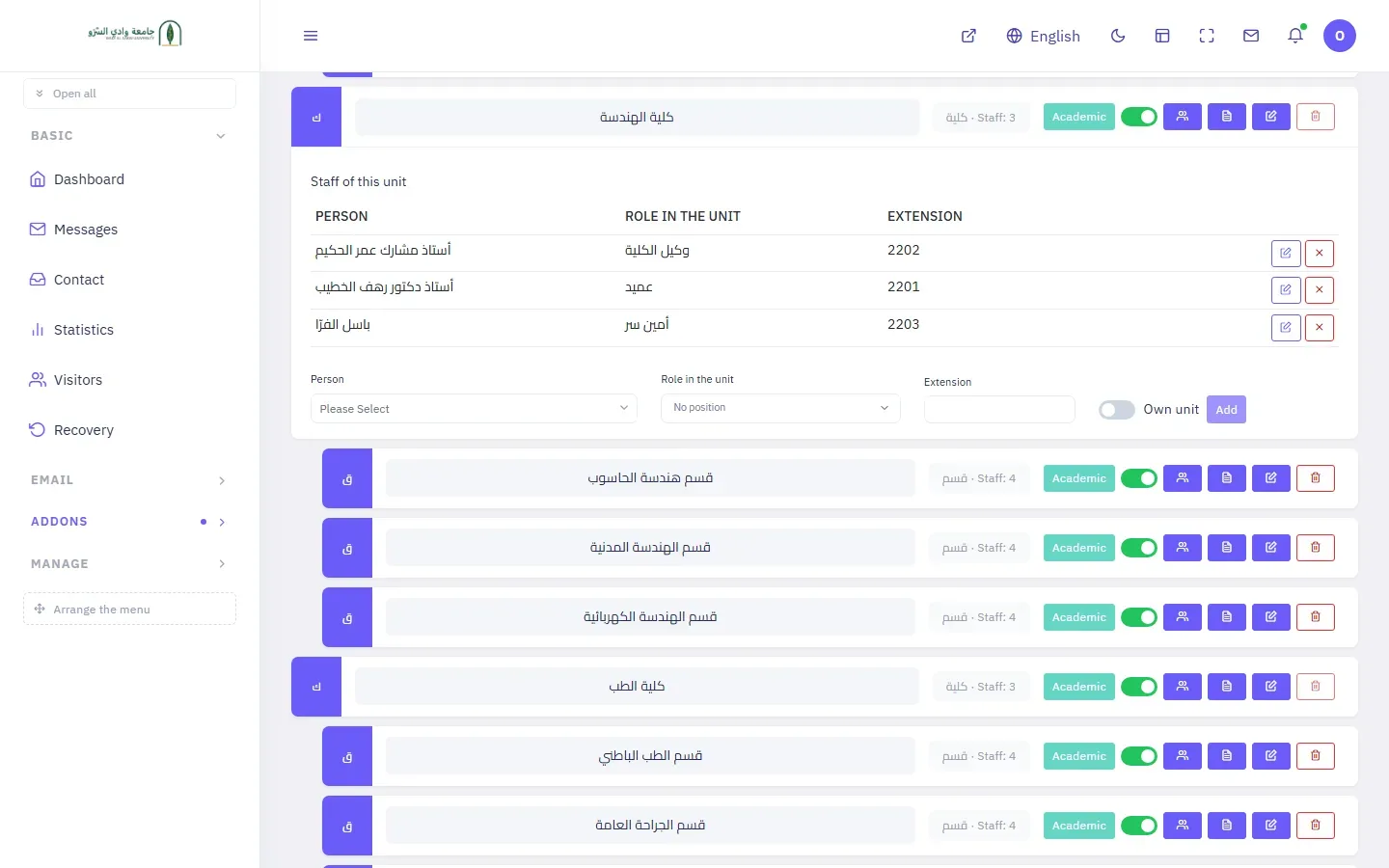
A person is placed in a unit by a post: under Units this person works in on the person, or under Staff of this unit — the people button on a unit's row. A post has a Role in the unit, chosen from the positions, and an Extension, the internal telephone number. One person may hold several posts — a vice-president who still teaches in a department — and Own unit marks the one that is theirs, the unit shown beside their name.
Titles and positions
Titles are the academic titles, and their order is the order of seniority on the site: smaller numbers come first, so a professor is listed before an associate professor.
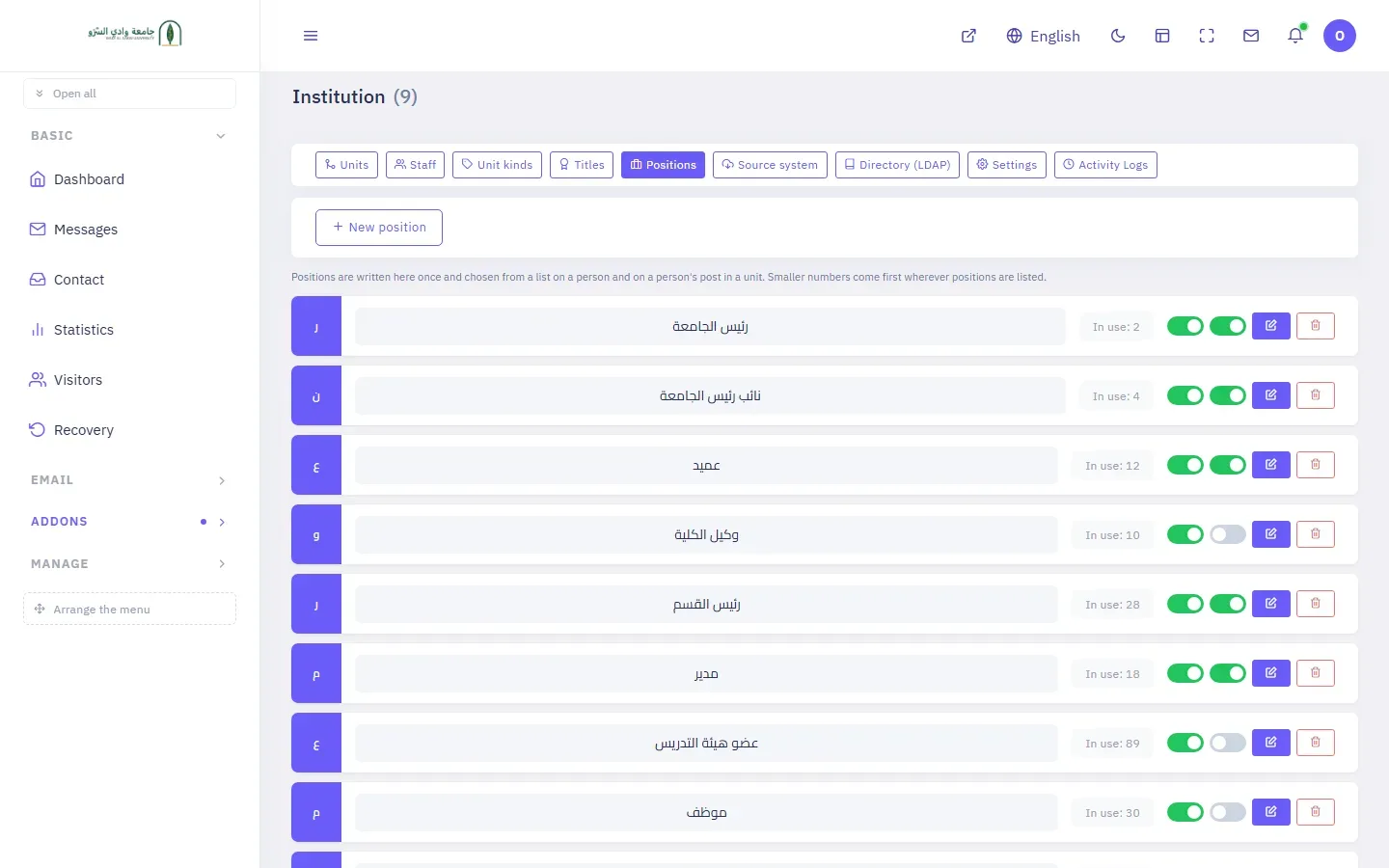
Positions are written once and chosen from a list on a person and on a post. Their order is the order of the rows on the staff cards. A position marked Its own row on the cards gives the people holding it a row of their own above the rest — the dean alone at the top of a faculty's page, then the vice-deans, then everyone else.
Photographs
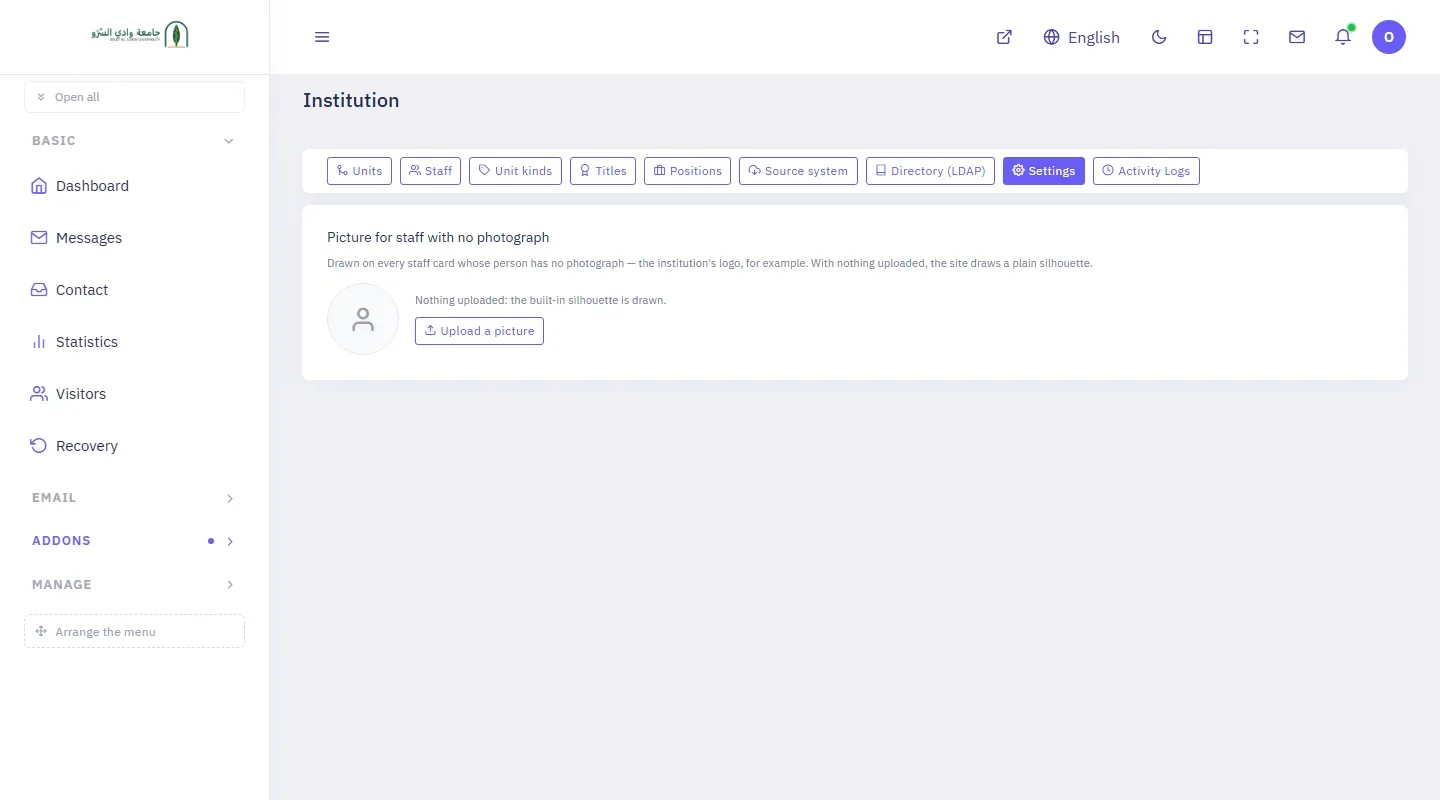
A person's photograph is uploaded on the person, under Photograph. Someone with no photograph is drawn with the picture set on Settings under Picture for staff with no photograph — the institution's logo, for example — or, with nothing set, a plain silhouette.
On the site: the four components
The addon brings four components to the page composer. Each is put on a page like any other component, and each has a page Role of the same name, so the site knows where a link to a unit or a list should lead. The Unit page needs its role.
- Units — the tree of units, each name leading to that unit's page. Which units shows all, the academic or the administrative half; How many levels says how deep it goes.
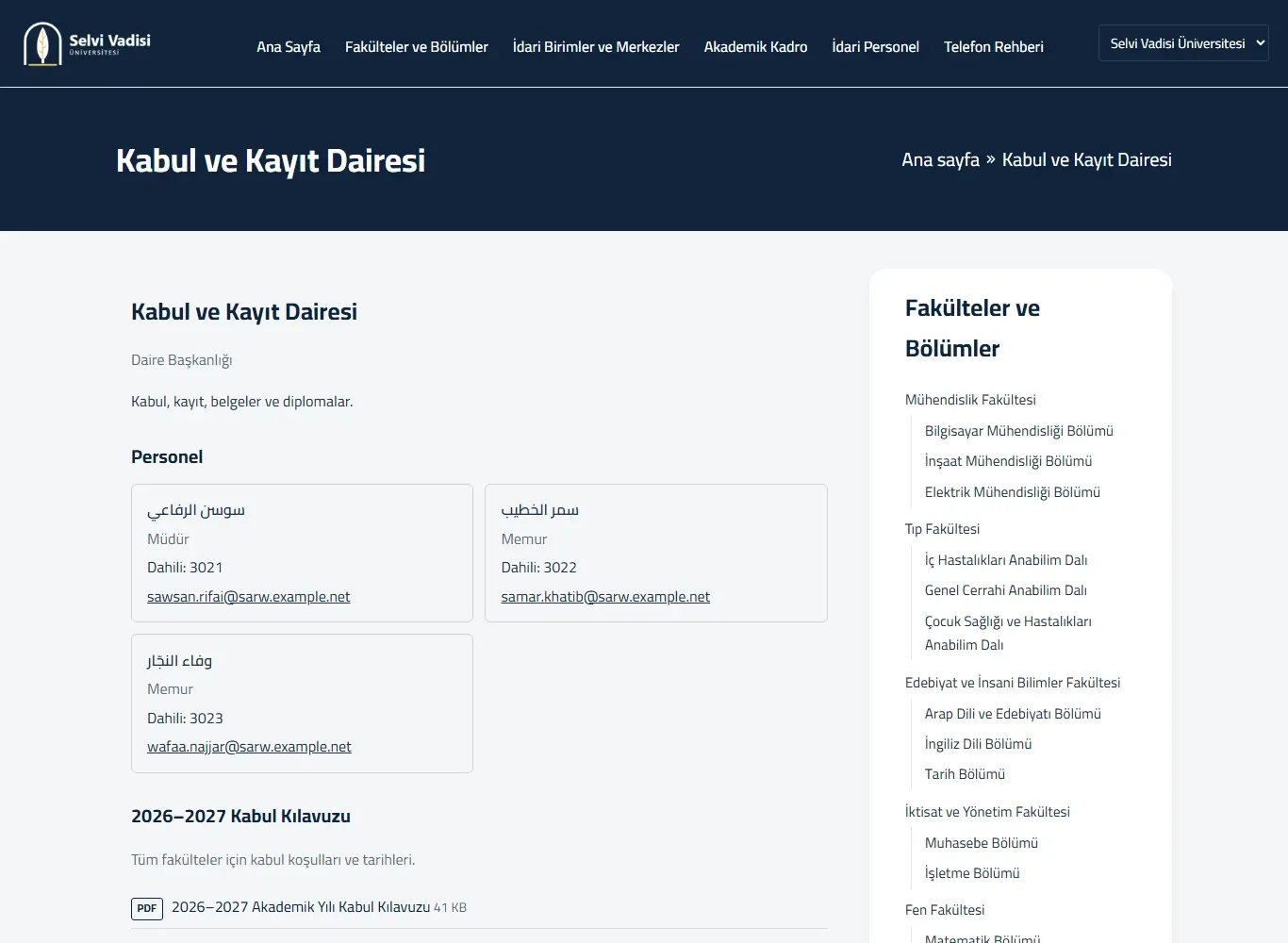
- Unit page — one unit in full: its description, its own units, its staff and its documents (Show the staff, Show the documents). It goes on one page whose role is Unit page, and the address after that page names the unit.
- Staff directory — the people, with a search. Which staff, Only this unit's staff with Include the units under it, How many on a page and Show the search. It has three shapes: Table, Cards with round photographs and Cards with square photographs. Fixed to one unit, it makes a faculty's own staff page.
- Phonebook — every unit with its people and their extensions, searched by name, unit or number; Only people with an extension leaves out the rest.
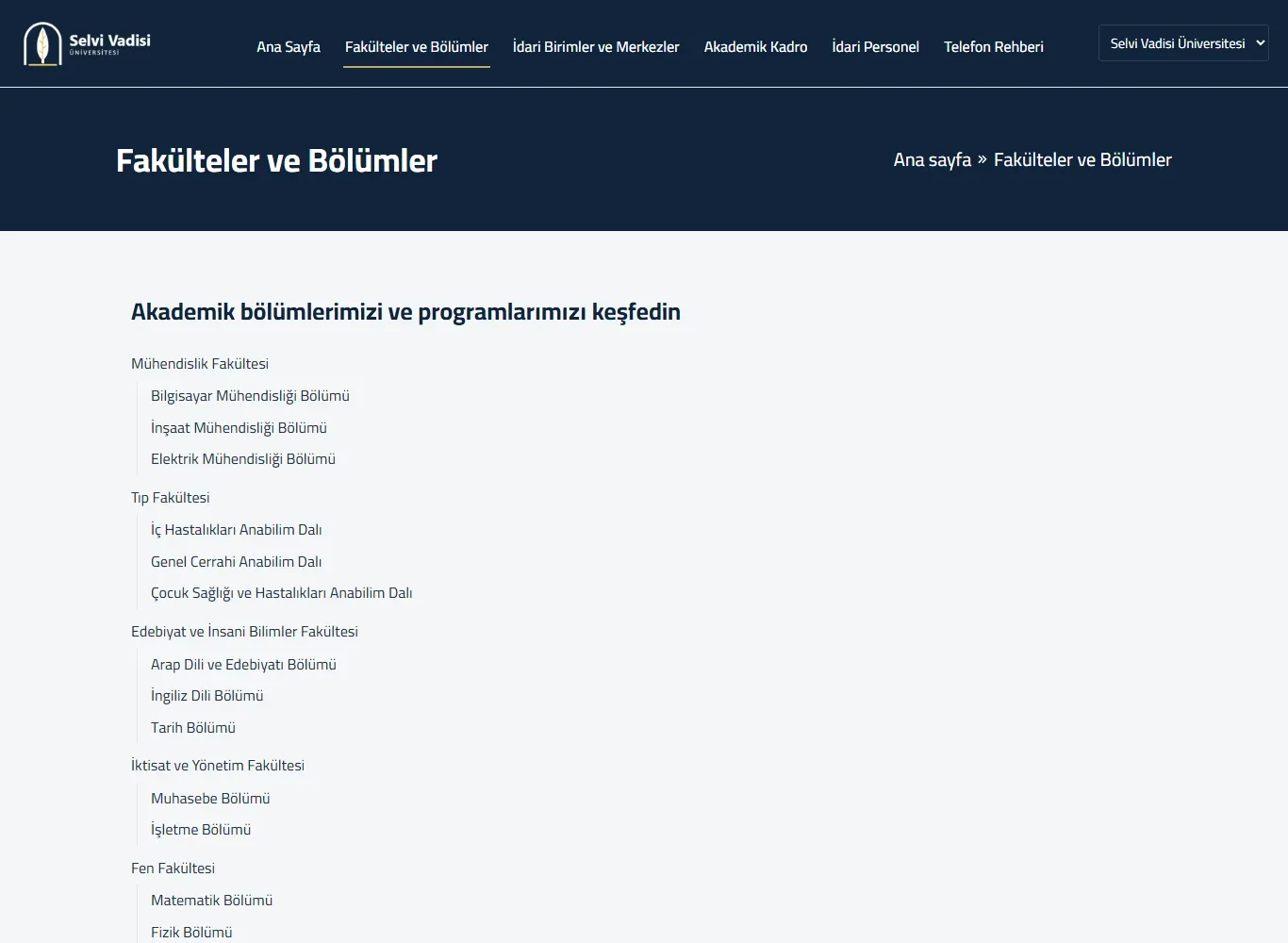
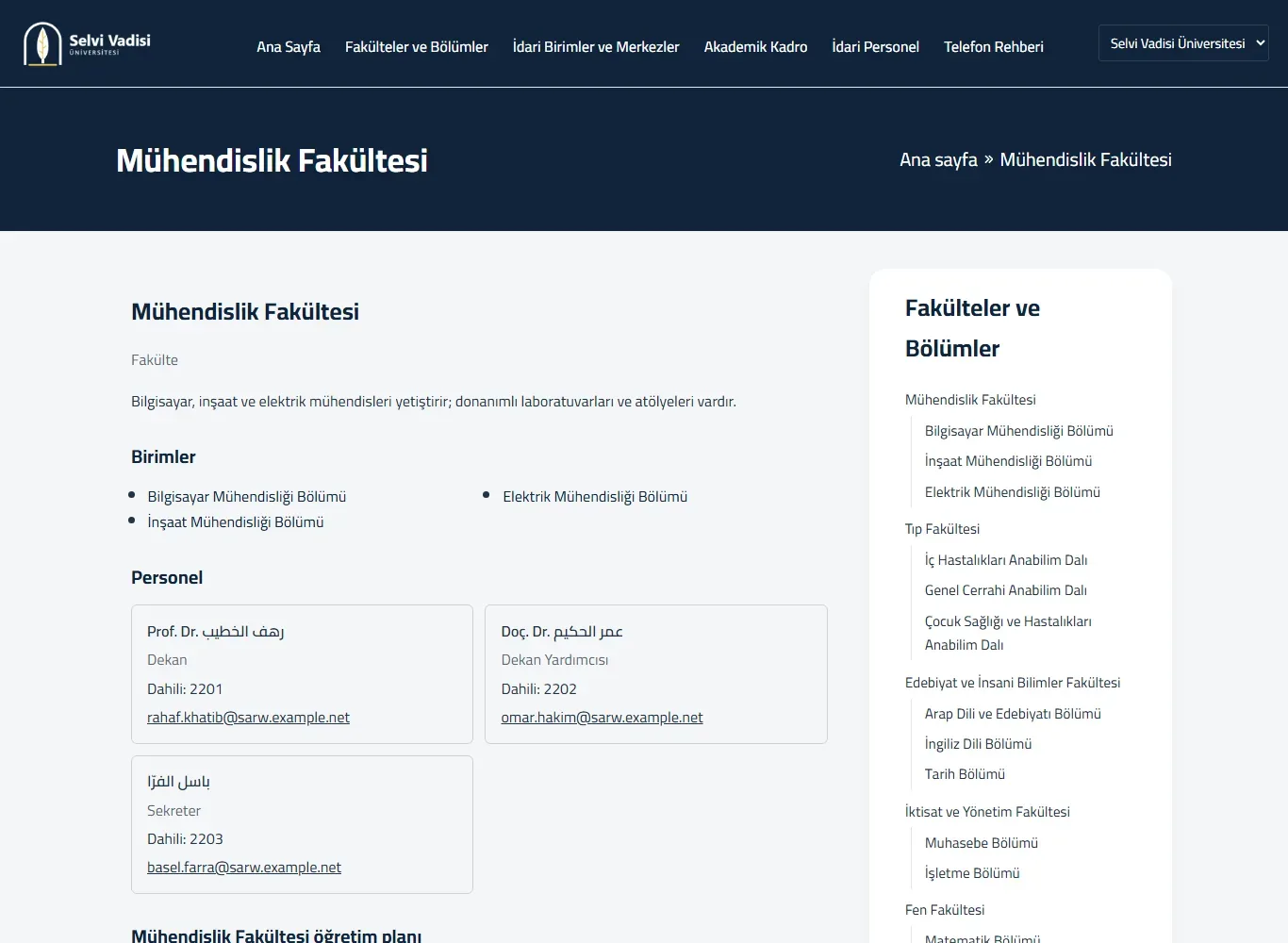
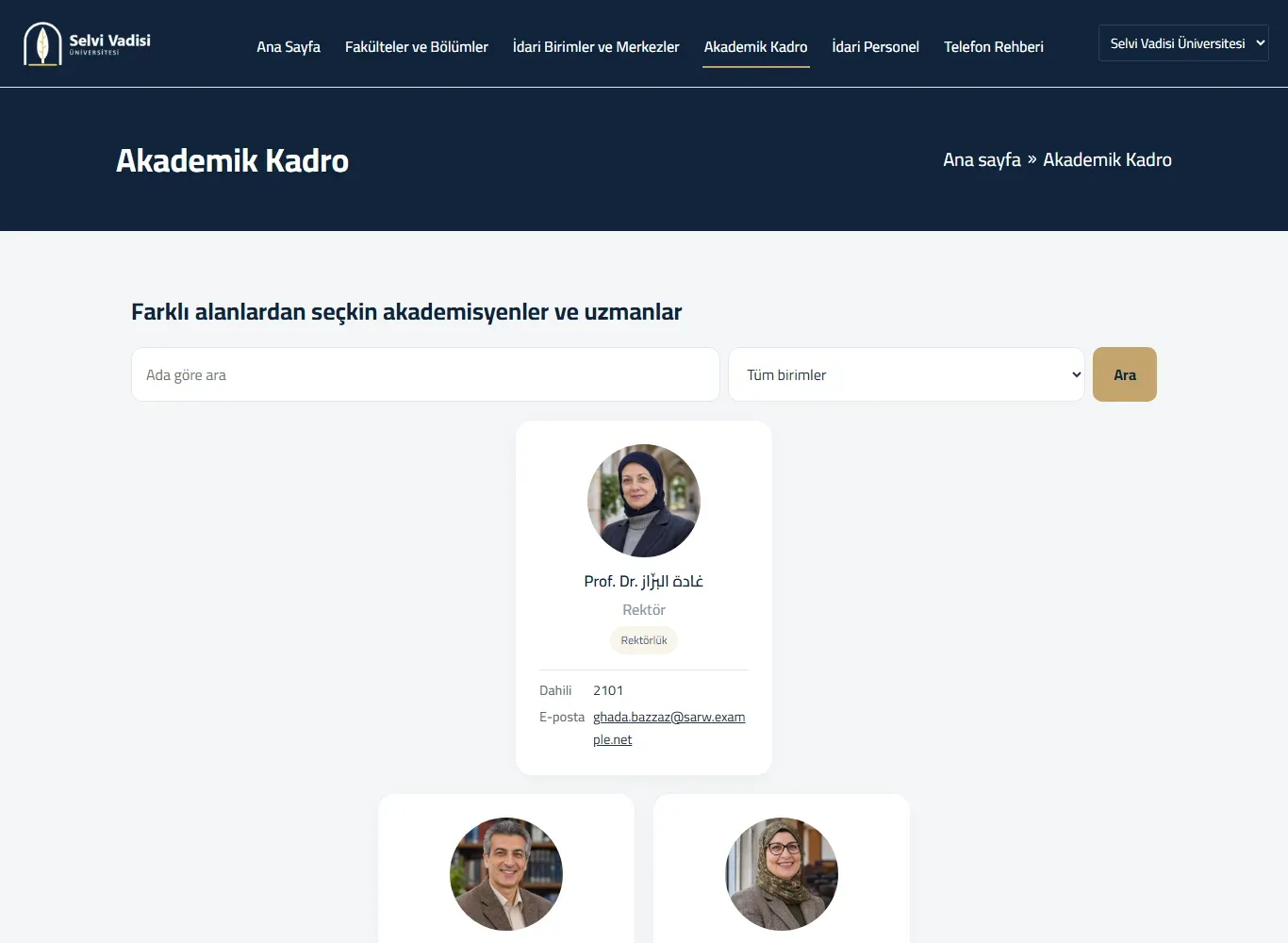
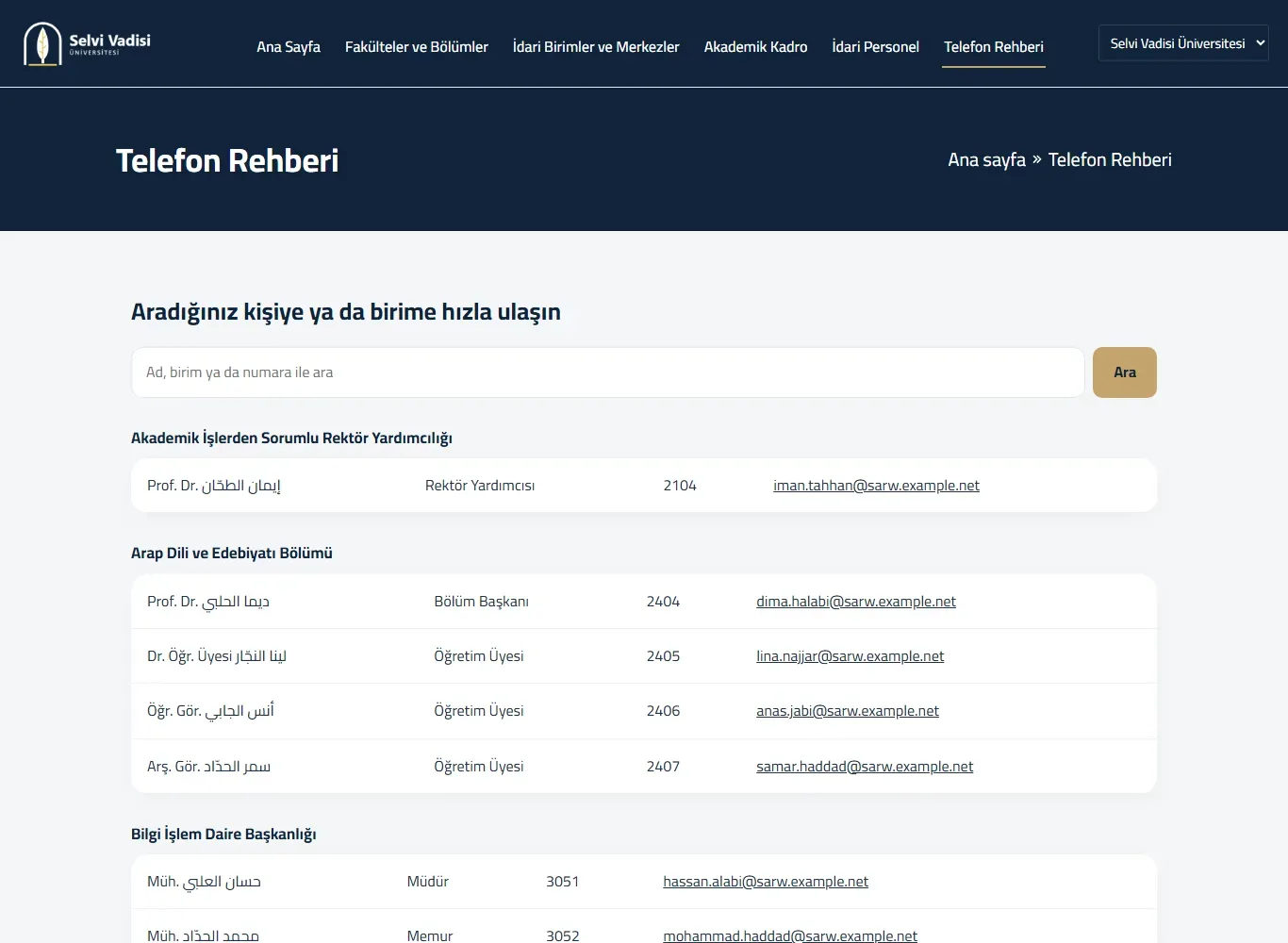
A person is shown with their title, name, position, extension and e-mail — never the registry number. The e-mail address is not written in the page as it is sent: it is put together in the visitor's browser, which keeps it from the programs that harvest addresses for spam.
Each unit's documents
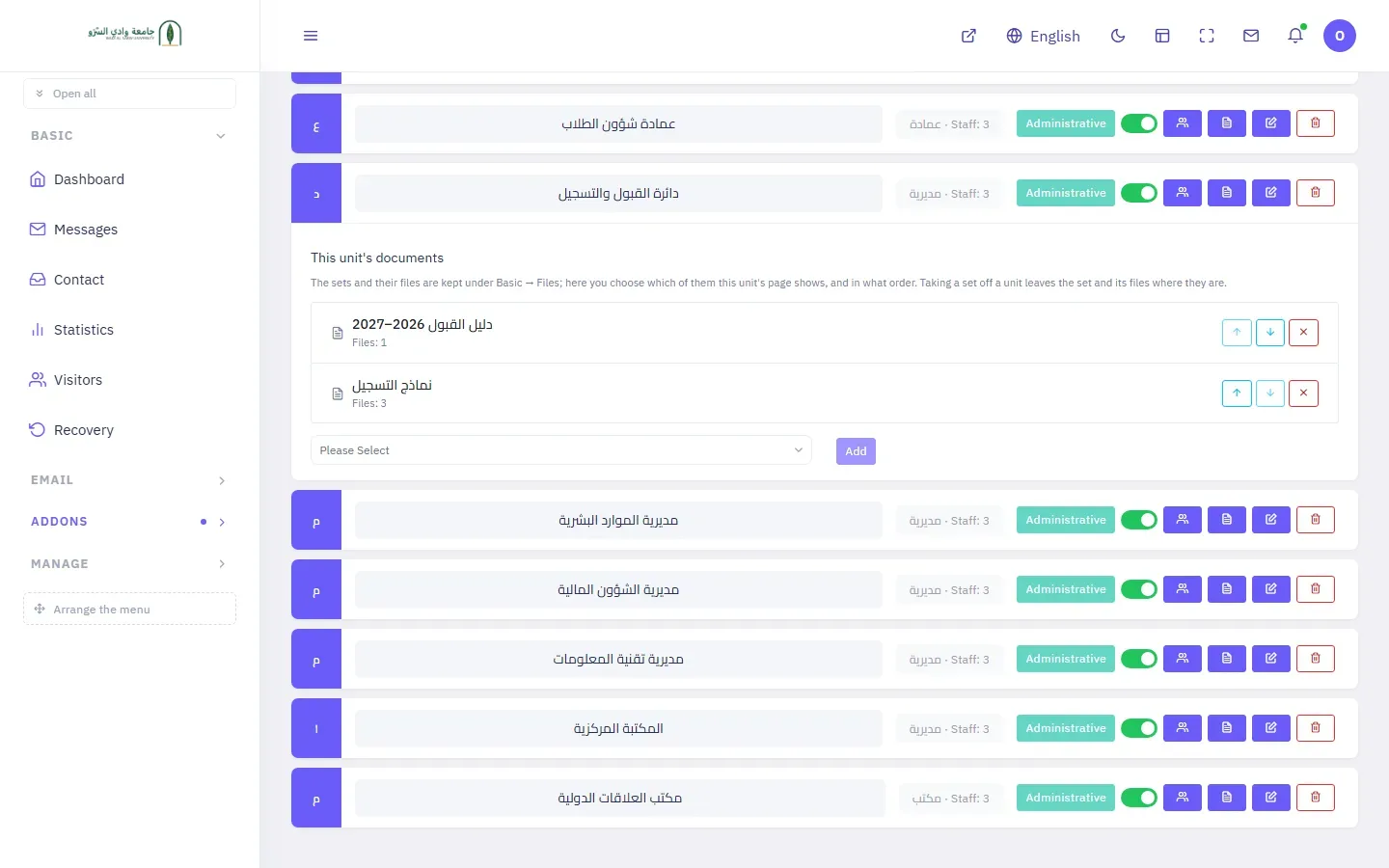
Forms, guides and regulations are kept in Basic's sets of files, under Basic → Offered on the site. The documents button on a unit's row chooses which sets that unit's page shows, and in what order; taking a set off a unit leaves the set and its files where they are. A set switched off in Basic is not shown.
Reading the units from the institution's system
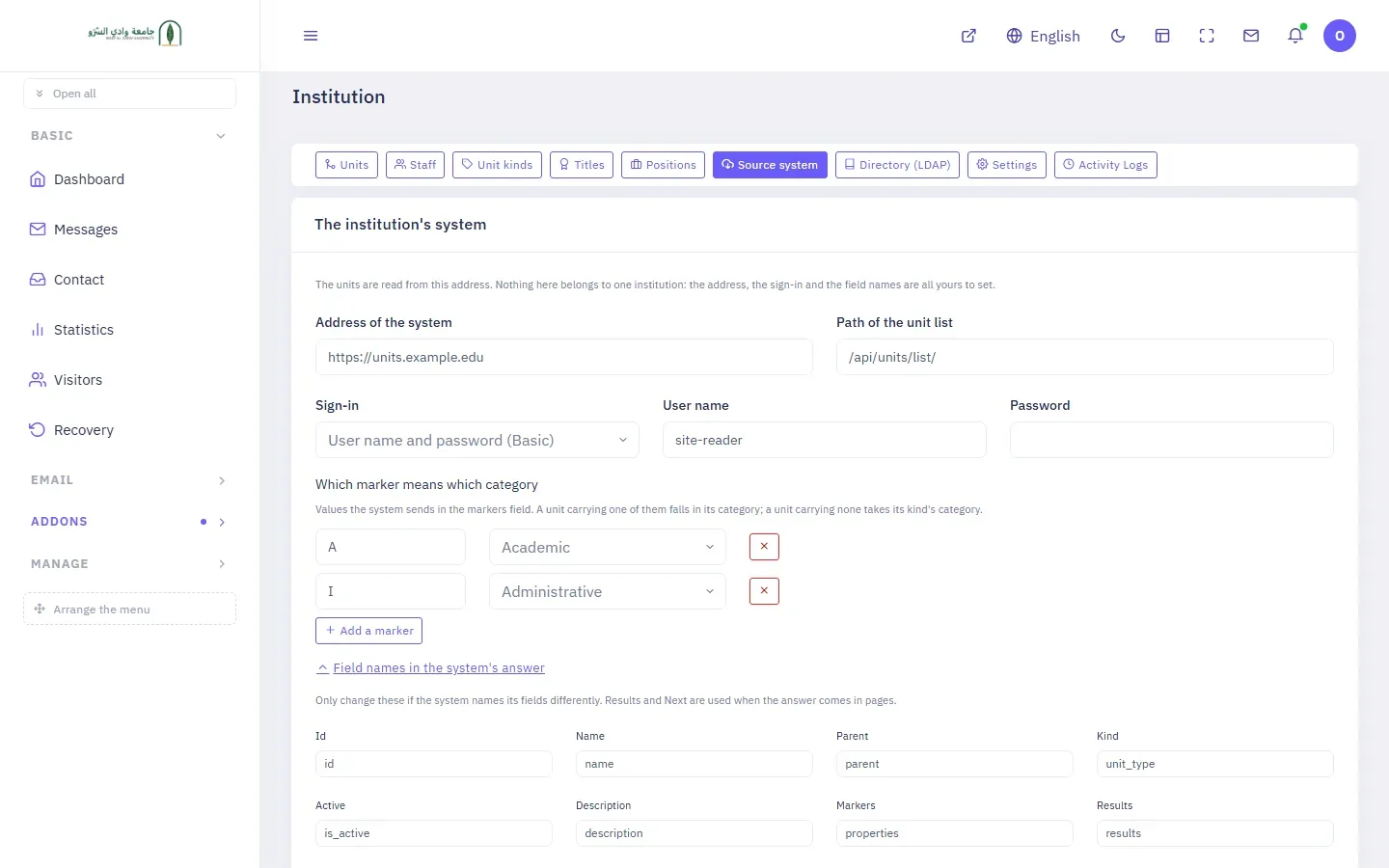
An institution that already keeps its units in a system of its own need not type them twice. On Source system, give the Address of the system and the Path of the unit list, and the Sign-in it asks for: None, User name and password (Basic) or Key (Token). A saved password or key is kept encrypted and never shown again; an empty box keeps it.
Which marker means which category maps the values the system sends in its markers field to the two halves. Field names in the system's answer is only for a system that names its fields differently — id, name, parent, kind, active, description, markers, and the results and next-page fields of an answer that comes in pages.
Test the connection reads the list without writing anything and says how many units the system answered with. Synchronise now writes them into the tree in one go. A unit the system no longer sends is switched off, never deleted; an answer with no units, or with the same unit twice, changes nothing. A unit that came from the system shows its name, parent, kind, category, description and switch read-only, because the next synchronisation would write them again; its address, order and website stay yours.
To keep the tree current by itself, switch on Read the institution's units from its system under Automatic work. Basic sign-in sends the password with every request, so give the system an https:// address.
Reading the staff from LDAP
The people can come from the institution's LDAP directory. The connection itself is the site's LDAP settings — Open the LDAP settings leads there. On Directory (LDAP) you list the branches that hold staff, each by its Branch (DN), with its category, and mark which ones the synchronisation reads whole (Read whole). Attribute names is only for a directory that names things differently; the fixed id must be one that never changes for a person — entryUUID on most directories.
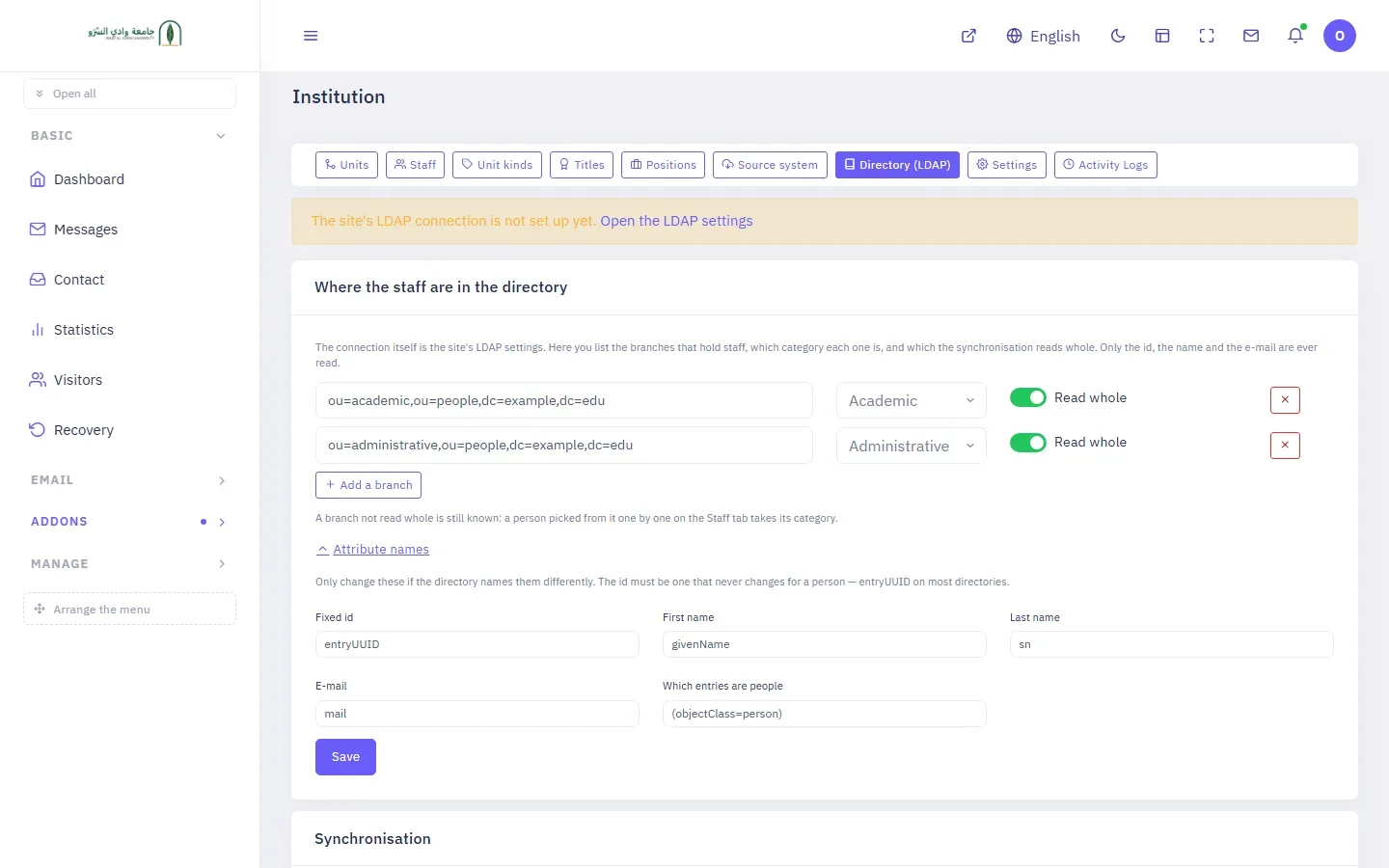
Only four things are ever read: the fixed id, the first name, the last name and the e-mail. The uid — which may be a national identity number — the mobile number and the password are never asked for.
Synchronise now updates names, e-mails and categories and adds anyone new; titles, positions, extensions and posts stay as you set them. Somebody no longer anywhere in the directory is switched off, never deleted, and a read that finds nobody changes nothing. One person can also be brought in on their own: Add from the directory on the Staff tab searches by name or e-mail. To run it on a schedule, switch on Read the staff from the directory under Automatic work.
In the site's other languages
The forms of a unit, a kind, a title and a position each end with In the site's other languages: a box for the name — and for a unit, the description — in every language the site has. The site's pages show the words of the page's own language, and an empty box shows the original. Person names are never translated. The names of document sets and their files are translated the same way, in their own forms under Basic.
Who may do what
The addon has three permissions, given to roles under Users → Roles:
- institution.view — See the units, the staff and their links without changing anything.
- institution.manage — Edit units, kinds, staff, titles and which documents belong to a unit, and the positions and posts with them.
- institution.setup — Set the source system and the directory up, and run a synchronisation; the Settings tab is theirs too.
The third is separate on purpose: whoever may correct a unit's name is not thereby somebody who may read the key to the institution's systems. The Reference page for Institution lists every component, setting and permission as the program declares them.
Comments
Nobody has written yet. Be the first.